OPCIS Data Points
OPCIS data points are stored in the Point Service (PNT). An OPCIS point has the same properties as other CygNet points. The point properties that are critical to an OPCIS point are its Site.Service and its External ID.
Site.Service
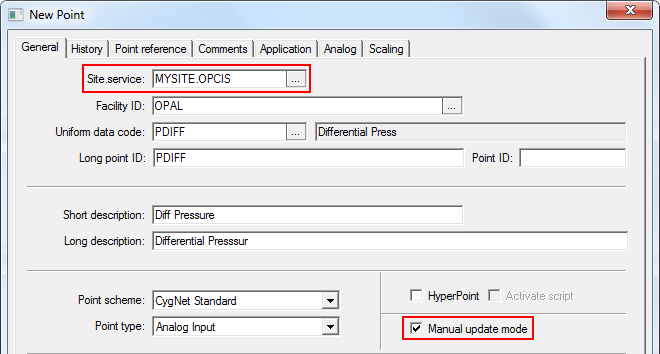
The Site.Service property (on the General page of the PNT editor) specifies the name of the point’s current value service, which would be an OPC Interface Service (for example, MYSITE.OPCIS).
|
| The current value service of an OPCIS point is an OPC Interface Service |
External ID
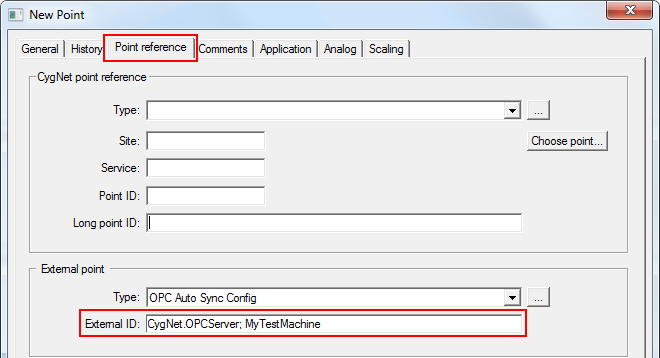
The External ID property (on the Point reference page of the point configuration record) specifies the OPC identifier. The contents of this free-form string field must match exactly the OPC identifier (spaces, capitalization, and punctuation).
|
| The External ID property specifies the OPC identifier of the item |
Other properties of an OPCIS point are no different than points associated with other types of current value services (UIS, HSS, SVCMON). An OPCIS point can be assigned a Facility and UDC, and it can be configured to report alarms, send notifications, report history values, and scale its value.
Manual Update Mode
If you place an OPCIS point in manual update mode (by checking Manual update mode on the General page of the PNT editor), the point will not receive updates from the OPC server, nor will user-entered values to be passed to the OPC server.
If the OPCIS point is not in manual update mode, it will receive updates from the OPC server and values will be passed from the OPCIS point to the OPC server.
Adding an OPCIS Data Point
CygNet Software recommends assigning a Facility and UDC to an OPCIS point so that these points can be sorted and filtered in the same manner as other points.
To Add an OPCIS Point
- Using CygNet Explorer, click on the PNT in the service hierarchy.
- Right-click in the white space in the PNT pane and click New.
- On the General page:
- In the Site.Service field, select the name of the OPCIS that will retrieve the data for the point.
- Select the Point Type.
- Select the point’s Facility. If the Facility has not been added to the system, you can type its name in the box.
- Select the point’s UDC.
- Click on the Point reference page.
- Enter the OPC identifier in the External ID property. Do not include the OPC server name.
- Define other properties as desired, such as alarms and history reporting.
- Click OK.
OPC Quality Data
When the OPCIS data point receives point data from an external OPC server it will include a value, timestamp, and quality data. OPC quality data is represented by 8 bits and is written to User Status bits 1-8 of an OPCIS data point. For this reason, the user should not configure User Status Bits 1-8 on OPCIS data points for other purposes.
As the data from the external OPC server is received by OPCIS, the Status Bits of the point will be updated and set, if applicable.


